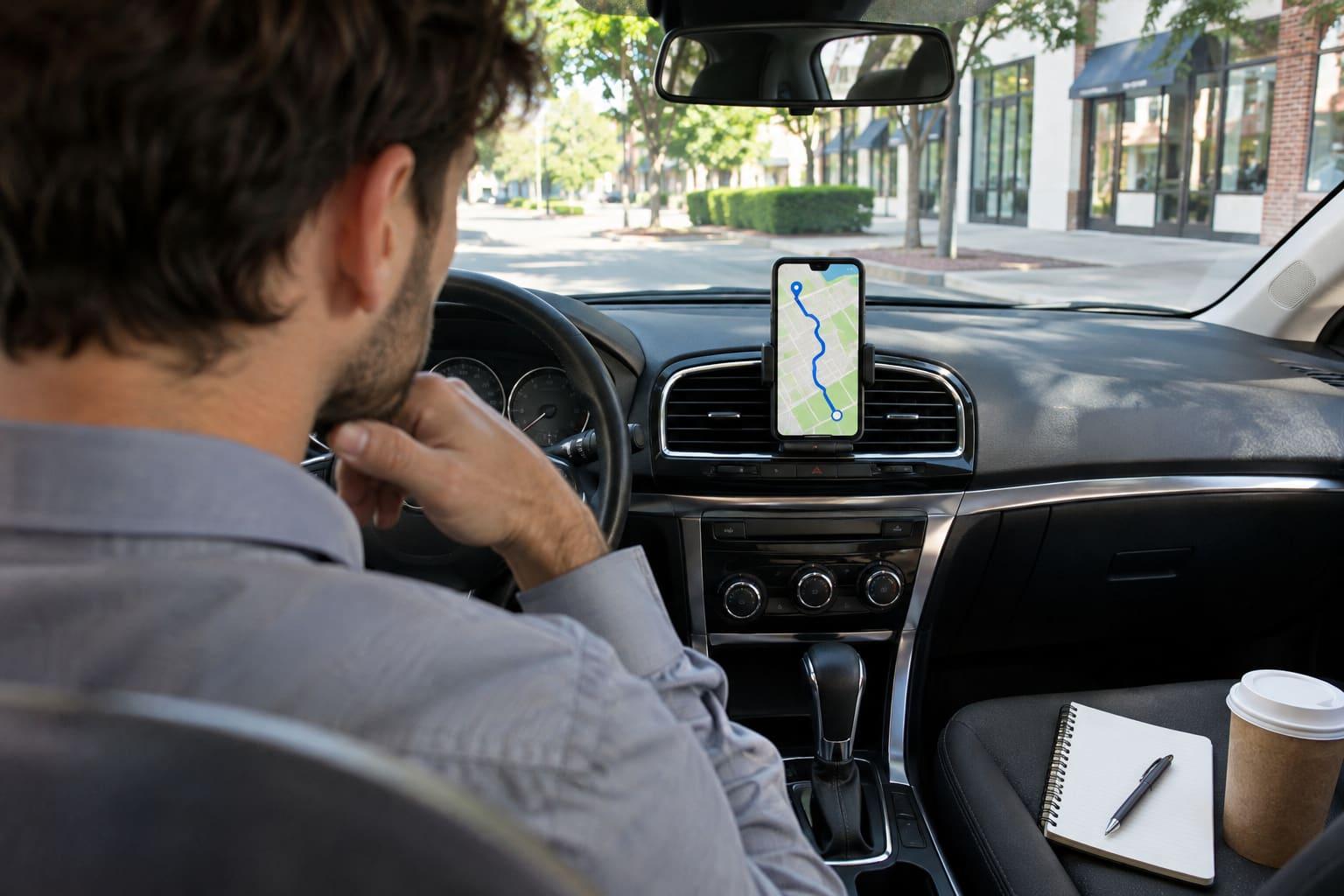
You can add up to 9 stops on a Google Maps route, and that count includes your final destination. Google's help page for getting directions says it for the computer, Android and iPhone: "You can add up to 9 stops, which includes the final destination." With your starting point, that is 10 places on the map.
That is enough for a short day and not enough for a full one. The rest of this article covers what counts as a stop, whether Google Maps puts the stops in a good order, how to get past the limit and what each workaround costs you, and when a sales route has outgrown Google Maps. It ends with a step-by-step for planning a 9-stop day.
The limit, as Google states it
Google's help page has the same wording on each platform. On a computer you click Directions, enter a start and a destination, then click Add destination below the ones you entered. On Android and iPhone you tap Directions, then More, then Edit stops. All three say you can add up to 9 stops, final destination included.
| Where | How to add a stop | Limit |
|---|---|---|
| Computer | Directions, then Add destination | 9 stops, final destination included |
| Android phone or tablet | Directions, then More, then Edit stops | 9 stops, final destination included |
| iPhone or iPad | Directions, then More, then Edit stops | 9 stops, final destination included |
The same page says multiple destinations work for every mode of transportation except public transit and flights. If a reader tells you the limit is 10, they are probably counting the starting point, which gives the same total. Third-party guides give both numbers for that reason. MyRouteOnline, a route planner vendor, writes that the 10 stops in a route include the starting point, the intermediate stops and the final destination.
What counts as a stop
- Every place you add after the start. Each customer you visit is one stop, and the last one is the final destination.
- Your starting point is not in the 9. Google's sentence counts stops and the final destination and does not mention the start. Guides that count the start as well get a total of 10.
- Places along the route are a separate search. Google says you can search for places along your route. A place you add to the route becomes a stop like any other.
- A return trip is a stop. If the rep ends the day where they started, the starting address is the final destination, and it uses one of the 9.
So a rep who starts at home, visits eight customers and returns home has used all nine: eight customers plus the trip home. A rep who ends at the last customer can visit nine.
Does Google Maps put your stops in order?
Google's help page describes only manual reordering. To change the order, you find the destination you want to move and drag it. On iPhone you hold the Reorder control first. The page says nothing about Google Maps reordering stops for you, so treat the order as yours. Routific, which sells a route planner, says in its guide that Google Maps does not automatically optimize stop order.
That matters more than the limit. Nine stops can be visited in 362,880 different orders, and the order you typed them in is rarely the shortest. If you add customers in the order they come to mind, expect some backtracking. A rep who drives back across town twice adds to the drive time that windshield time is about.
How to get past the limit, and what each way costs
Split the day into legs
Plan stops 1 to 8 as one route, then start a second route from stop 8 for the rest. This needs no extra tool. The costs are that the legs are separate, so nothing checks that the second leg follows well from the first, and the rep has to switch routes mid-day.
Use My Maps layers
Google's My Maps is a separate product for drawing your own maps. Its help page on map layers says maps start with one layer and "you can have up to 10." A separate page on adding places says a map can have up to 10,000 lines, shapes or places, and a layer up to 2,000. That is plenty of room for pins.
Directions are different. The My Maps directions page says you add another leg with Add destination, and that "each set of directions goes on its own layer." It states no cap on stops per set of directions. Check the stop count on your own map before you rely on a number. Because each set of directions uses a layer, 10 layers also caps the number of separate routes on one map.
My Maps is good for seeing every customer as a pin. It is awkward as a daily route tool, because the rep has to open each layer and jump into Google Maps for turn-by-turn directions.
Combine several routes with a free tool
MoreThan10 is a free web tool, not affiliated with Google, that merges several Google Maps routes into one link. You plan the trip in chunks, paste each chunk's address into the tool, and each new chunk starts where the previous one ended. Its page shows an example of 15 stops combined. It joins the chunks and does not reorder them, so you still choose the order by hand.
| Method | What you get | What it costs you |
|---|---|---|
| Split into legs | As many stops as you have legs | Manual switching, no check across legs |
| My Maps layers | A map with every customer pinned | Up to 10 layers, directions on a layer each, extra steps to navigate |
| MoreThan10 | One link with more than 10 stops | A third-party tool, order still by hand |
When a sales route needs a route planner
Google Maps works for a one-off day with a handful of stops. A sales route outgrows it when any of these is true.
- The route repeats. A weekly route has to be rebuilt in Google Maps every week, by hand. A planner keeps it and brings it back on schedule.
- You visit 20 or more stops a day. At that size, hand-sorting the order costs more than the drive it saves, and the limit forces legs.
- More than one rep. A manager cannot see what a team plans or visits from separate Google Maps trips.
- You need a record. Google Maps gets a rep to the door. It does not log that the visit happened or keep the notes with the customer. The best apps for outside sales reps compares the tools that do.
Plan a 9-stop day in Google Maps, step by step
If you stay with Google Maps, plan the day this way. The example is a hypothetical rep who starts from home and ends at the last customer, so all nine stops are customers.
- Pick the nine. List the customers due this week in a note. If you have more than nine, keep the nine that are overdue or have appointments, and move the rest to another day.
- Fix the appointments. Customers with a set time go in order of time. Everything else fills the gaps between them.
- Sort the rest by area. Group the customers by side of town. Do the farthest group early or late in the day, not in the middle.
- Open Google Maps and tap or click Directions. Enter your home address as the start and the first customer as the destination.
- Add the other eight. On a computer, click Add destination. On a phone, tap More, then Edit stops. Add them in your planned order.
- Check the total time. Google shows the drive time for the route. If the total drive is longer than you expected, drag the stops that sit far from the others and watch the time change.
- Drag to fix backtracking. Look at the route on the map. If it crosses itself, move a stop to the other side of the crossing.
- Add the visit time. In this example, 30 minutes per customer for nine customers is 4.5 hours, on top of the drive. If the sum is over your working day, drop the last stop.
- Save a note of the order. Google Maps does not keep your plan as a repeating route, so copy the order into your notes if you want to run it again next week.
Doing this by hand for every rep every week adds up fast, which is where a repeating route in a tool built for it pays back. The same logic of fixing a visit rhythm is in call cycle planning.
What to do next
- Count the stops on your reps' typical day. If it is under 9, Google Maps is enough for the directions.
- If it is 9 to 15, split the day into two legs and order each leg by hand.
- If it is over 15, or the route repeats, or you manage a team, compare the options in best apps for outside sales reps and try one on a single route for a week.